iPhone storage full after deleting photos? It happens more often than people think.
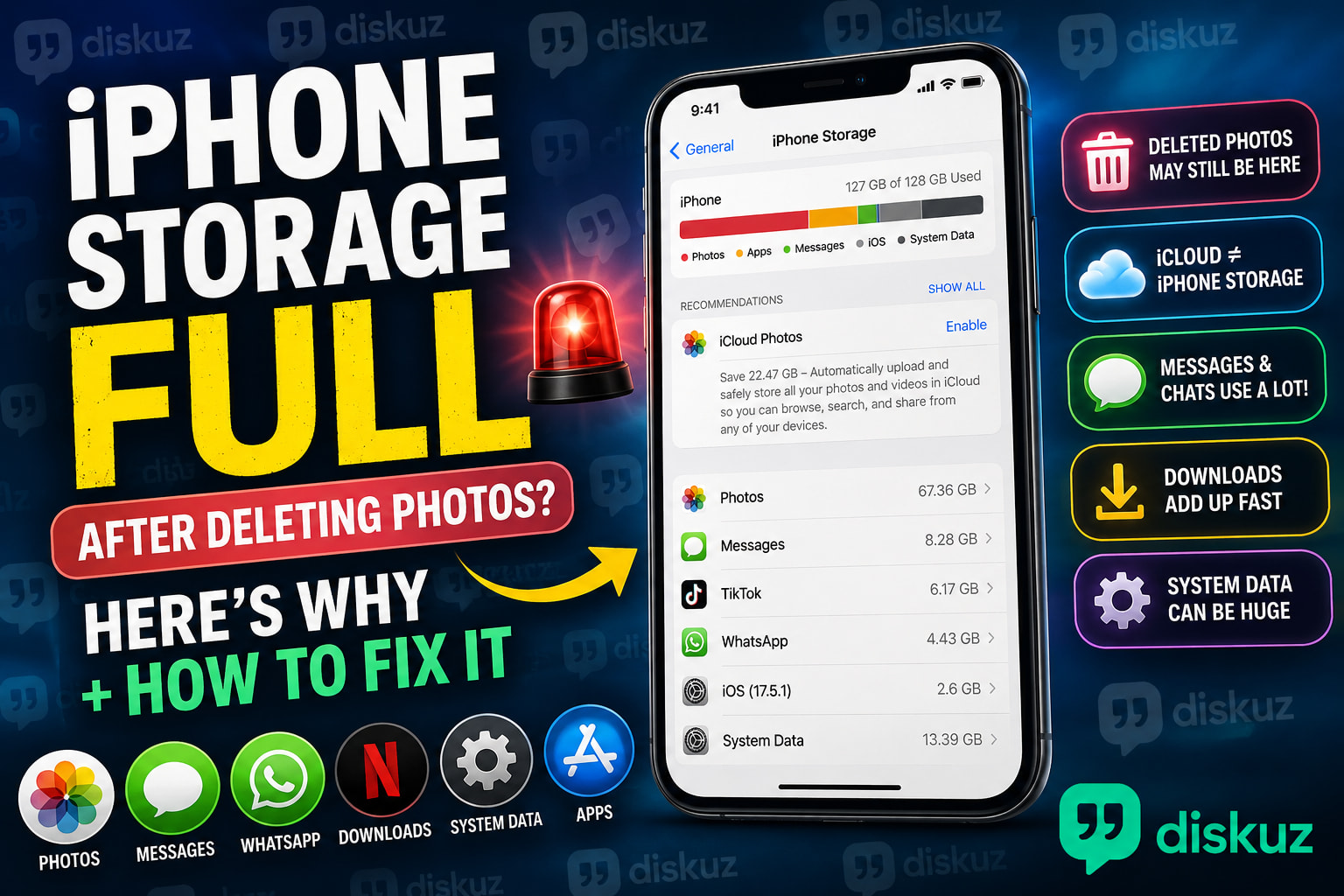
You delete hundreds of photos, clear out screenshots, remove a few videos, and the Storage Almost Full warning is still there. Sometimes the storage number barely changes at all.
The reason is simple: photos are not always the thing taking up the most space. Old message attachments, downloaded shows, app cache, WhatsApp media, and iCloud settings can all keep your iPhone storage full.
Here’s what to check.
 Check What Is Actually Taking Up Space
Before deleting more photos, open:
Settings → General → iPhone Storage
Give it a moment to load. You will see a breakdown of what is using space on your iPhone.
Look at the biggest items first. It may be Photos, but it could also be Messages, TikTok, Instagram, WhatsApp, Spotify, Netflix, or System Data.
This is the fastest way to find out why your iPhone storage is full.
 Empty the Recently Deleted Folder
Deleting photos does not always remove them from your iPhone immediately.
Photos and videos usually stay in Recently Deleted for up to 30 days. Until you permanently delete them, they can still take up storage.
Open:
Photos → Recently Deleted → Select → Delete All
Check videos first. A few long videos, especially 4K videos, can use several GB of iPhone storage.
 Why Is My iPhone Storage Full When I Have iCloud?
This is one of the most common questions.
iCloud storage is not the same as iPhone storage.
iCloud can store your photos online, but your iPhone may still keep the full-resolution originals on the device. If that happens, paying for more iCloud storage will not automatically fix the “iPhone Storage Full” message.
To free up space, check this setting:
Settings → Your Name → iCloud → Photos → Optimize iPhone Storage
When Optimize iPhone Storage is enabled, your iPhone can keep smaller versions of photos and videos while the full originals stay in iCloud.
If Download and Keep Originals is selected, your phone may be storing your entire photo library locally.
 Messages and WhatsApp Can Use More Storage Than Photos
Messages are easy to forget about.
Years of photos, videos, GIFs, voice notes, screenshots, and group chat attachments can quietly take up a huge amount of storage.
To check Messages:
Settings → General → iPhone Storage → Messages
Look for Large Attachments and remove old videos or files you no longer need.
For WhatsApp, open:
WhatsApp → Settings → Storage and Data → Manage Storage
It is common to find old group chat videos taking up several gigabytes.
 Delete Downloads You No Longer Need
Downloaded content is another major reason iPhone storage fills up.
Check apps such as:
- Spotify
- Apple Music
- Netflix
- Disney+
- YouTube
- Podcasts
- Google Maps
- Apple Maps
Old playlists, downloaded episodes, podcasts, and offline maps can stay on your phone long after you stop using them.
If you need to free up iPhone storage quickly, deleting offline downloads is often more effective than deleting random photos.
 TikTok, Instagram, and Other Apps Store Cache Data
Apps that show a lot of photos and videos can build up cache files over time.
TikTok, Instagram, Facebook, Reddit, and Safari may use more storage than expected, even if you do not have many saved files inside them.
Go back to:
Settings → General → iPhone Storage
If one app is unusually large, try these options:
- Check whether the app has a Clear Cache setting
- Delete old drafts, downloads, or saved videos
- Delete the app
- Reinstall it from the App Store
Reinstalling an app can remove old cache data that is not always cleared automatically.
 Check the Downloads Folder in Files
The Files app can hold old PDFs, videos, ZIP files, email attachments, and documents downloaded from Safari or messaging apps.
Open:
Files → Browse → Downloads
You may find old files from work, school, travel, or online purchases that are no longer useful.
 What Is System Data on iPhone?
If you see a large gray section called System Data, it includes temporary files, cache, logs, fonts, Siri voices, and other files used by iOS.
System Data can become larger after:
- An iOS update
- Streaming lots of videos
- Downloading large files
- Syncing iCloud Photos
- Restoring an iPhone backup
Try these first:
 Restart your iPhone
Update to the latest iOS version
Connect your iPhone to Wi-Fi and power for a while
Check iPhone Storage again later
If System Data stays extremely large for several days, backing up and restoring the iPhone may help. Use that only if the usual fixes do not work.
 How to Free Up iPhone Storage Fast
If your iPhone storage is almost full, start here:
- Empty Recently Deleted in Photos
- Turn on Optimize iPhone Storage
- Delete large Messages and WhatsApp attachments
- Remove downloaded movies, music, podcasts, and maps
- Clear cache or reinstall large apps
- Delete old files from the Downloads folder
- Use Offload Unused Apps in iPhone Storage
Offload Unused Apps removes the app but keeps its documents and data, so you can reinstall it later without losing everything.
 FAQ: iPhone Storage Full After Deleting Photos
Why is my iPhone storage still full after deleting photos?
Your deleted photos may still be in Recently Deleted. Storage can also be used by videos, Messages attachments, WhatsApp media, downloaded content, app cache, and System Data.
Why is my iPhone storage full when I have iCloud storage?
iCloud storage and iPhone storage are separate. Your iPhone may still be keeping full-resolution photos and videos on the device. Turn on Optimize iPhone Storage to reduce the local space used by your photo library.
Does deleting photos from iPhone delete them from iCloud?
If iCloud Photos is enabled, deleting a photo from your iPhone usually deletes it from iCloud and other devices signed in with the same Apple Account. Check Recently Deleted if you need to recover something.
How do I find what is taking up storage on my iPhone?
Go to Settings → General → iPhone Storage. It shows which apps, files, photos, messages, and system files are using the most storage.
How can I free up iPhone storage without deleting apps?
You can remove downloads, clear large message attachments, empty Recently Deleted, enable Optimize iPhone Storage, clear app cache, delete old Files downloads, and use Offload Unused Apps.
If your iPhone storage is still full after deleting photos, check Messages, downloaded content, and the largest apps in Settings → General → iPhone Storage. In many cases, the real culprit is not the camera roll at all.
What ended up taking the most space on your iPhone?